How To Unlock SIM Lock on iPhone? [Any Carrier]
Ready to Unlock Now?




Remove All Types of Lock Screen
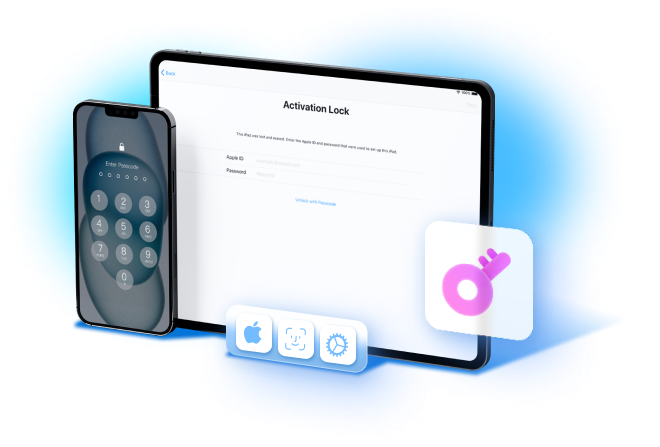
Unlock your iPhone/iPad lock screen in different situations. Dr.Fone is fully compatible with all types of lock screens, like Apple ID, Face ID, Touch ID, etc., and is capable of removing them in a few minutes.

iPhone Locke to Owner
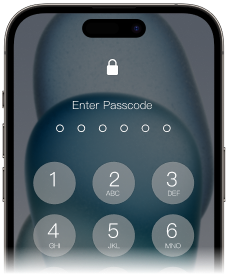
4-6-digit Passcode
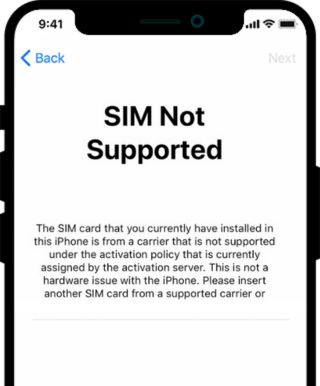
Unlock SIM Lock on iPhone
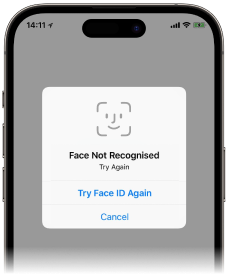
Face ID/Touch ID
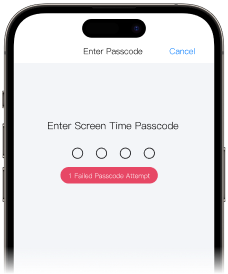
Screen Time Passcode
Remove SIM Lock/ Unlock iPhone Carrier
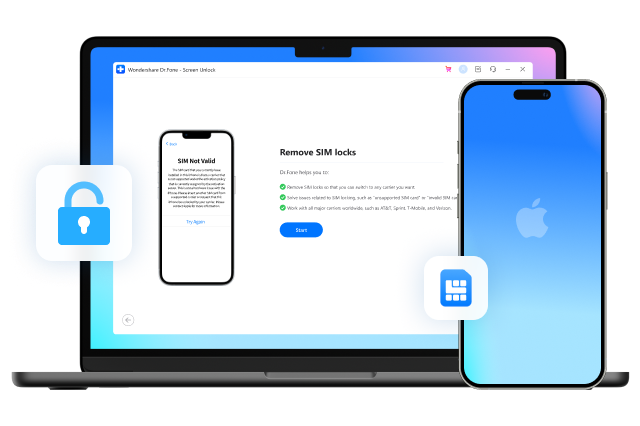
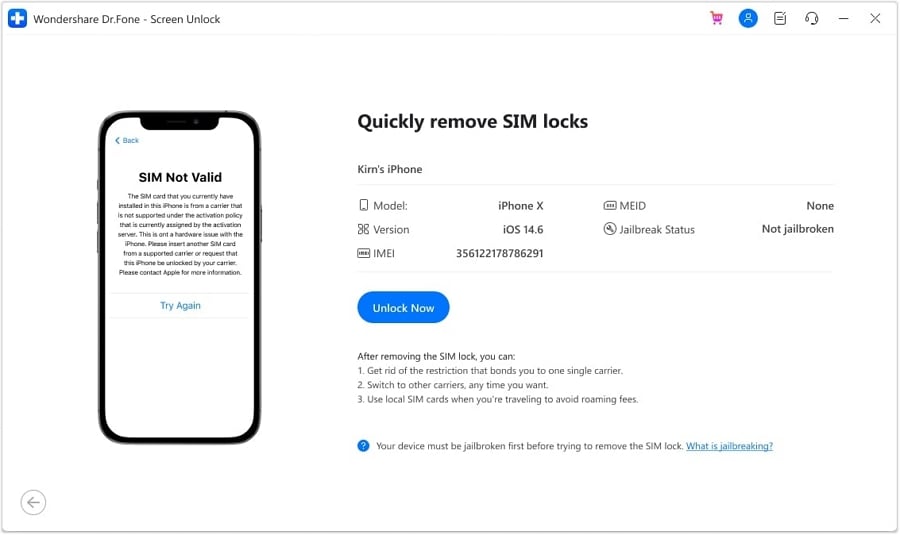
When you travel abroad or replace and restart your SIM card, your iPhone may get locked. Dr.Fone - Screen Unlock (iOS) enables you to fix carrier SIM issues in many common scenarios such as "SIM Not Support", "SIM Not Valid", "SIM Locked" or "No Network Serves". Furthermore, it helps you quickly unlock your iPhone for international use with different networks like AT&T, Sprint, T-Mobile, Verizon, etc., without losing data.
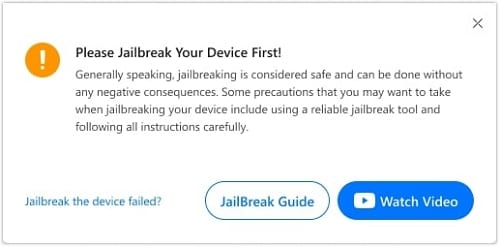
Note: The precondition for the remove SIM lock is to jailbreak your iOS. Please consider if you want to jailbreak your device.

Bypass iCloud Activation Locks
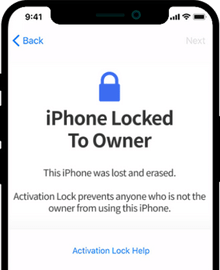
When you forget your iCloud password after restoring a device you can't access your phone anymore. Using Dr.Fone, you can remove the iCloud activation lock easily and get into your iPhone without hassle.
Note: The precondition for the bypass iCloud activation lock is to jailbreak your iOS. Please consider if you want to jailbreak your device.
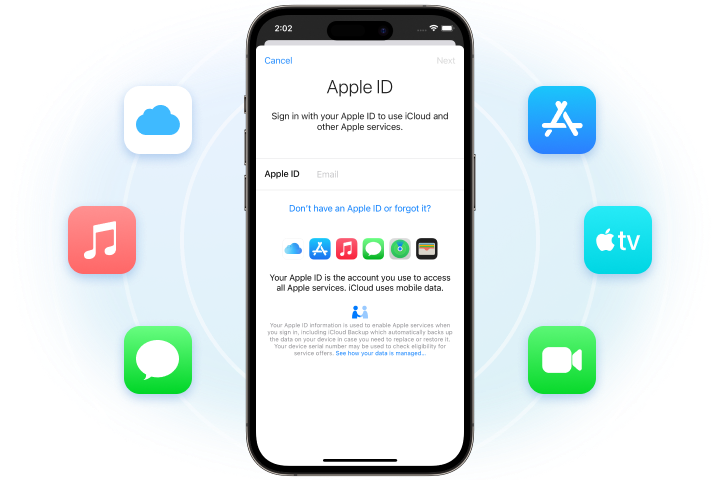
Unlock Apple ID
Forgot your Apple ID password? Are you failing to remove your Apple ID account? Dr.Fone can unlock your iPhone within seconds. Regain all your iCloud services and Apple ID features by logging into a new account.
This feature works even when Find My iPhone is enabled.
Remove MDM/Bypass MDM
Using Dr.Fone's 'Remove MDM' feature, you won’t lose data after removing MDM. When you forget the username and password for your iPhone/iPad MD, Dr.Fone can bypass the MDM so you can access the device easily.

Steps to Unlock iPhone SIM Carrier in Seconds
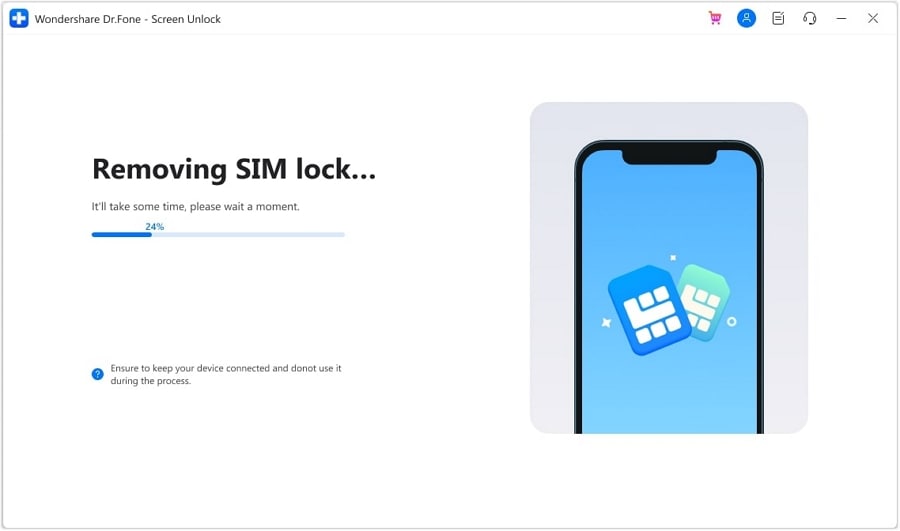
Following this guide to remove the iPhone SIM lock with ease. No learning curve. Unlock SIM Lock in simple steps.
Tech Specs
CPU
1GHz (32 bit or 64 bit)
RAM
2 GB or more of RAM
Hard Disk Space
200 MB and above free space
iOS
Bypass Activation Lock: Compatible with iPhone 6S to iPhone X/SE 1, iPad 4 to iPad 7, and iPod touch 7 to iPod touch 9 running iOS 12.0 to iOS 16.3.
Remove Sim Lock: Compatible with iPhone 5S to iPhone X running iOS 12.0 to iOS 14.8.1.
Other unlocking functions: Compatible with all iOS versions starting from iOS 7.0.
Computer OS
Windows: Requires Windows 7 or newer
Mac: Requires mac OS X 10.8 & higher
iPhone Unlock FAQs
-
Is passcode the same as a password?A lot of iOS users have the same question "What is the difference between 'password' and 'passcode'?". Well, the password and passcode are two different things on the iPhone/iPad. The password on the iPhone usually is meant for Apple ID and iCloud account, which is used for iTunes and App Store purchases. While the passcode is usually meant for lock screen to secure your device from unauthorized access.
-
How many times can I try to unlock my iPhone?
After you keep entering the incorrect passcode, your iPhone will show the messages below:
- 5 incorrect passcode entries in a row, it shows "iPhone is disabled, try again in 1 minute";
- 7 incorrect passcode entries in a row, it shows "iPhone is disabled, try again in 5 minutes";
- 8 incorrect passcode entries in a row, it shows "iPhone is disabled, try again in 15 minutes";
- 9 incorrect passcode entries in a row, it shows "iPhone is disabled, try again in 60 minutes";
- 10 incorrect passcode entries in a row, it shows "iPhone is disabled, connect to iTunes";
After 10 incorrect passcode entries, your device will be completely locked and you will have to restore your iPhone to get it unlocked.
-
What do you do if you can't remember your iPhone passcode?
If you've forgotten your iPhone passcode, you can follow the steps below to reset the forgotten passcode using iTunes.
- Launch iTunes on your computer and connect your iPhone to computer.
- If you've synced your iPhone on this computer before, wait the iTunes to sync and backup your iPhone. Then click Restore iPhone. After the device is restored, set up your iPhone and tap Restore from iTunes backup.
- If your iPhone has never synced before, you can only restore the iPhone in Recovery mode. After connect your iPhone, try to force restart it. Then click Restore. Please note this process will completely erase your data on the device.
-
How do I disable the lock screen on the iPhone?
To disable lock screen on iPhone, just follow the steps below:
- On your iPhone, go to Settings.
- If you have iPhone X or later, select Face ID & Passcode. On earlier iPhone devices, tap Touch ID & Passcode. On devices without Touch ID, tap Passcode.
- Then tap Passcode to turn off lock screen on iPhone.
No longer to worry about unlocking!
No matter your phone is locked by a screen lock, or bought a second-hand with activation lock, MDM, or screen time passcode, Dr.Fone can handle all these locks and unlock them!